> ## Documentation Index
> Fetch the complete documentation index at: https://docs.pylar.ai/llms.txt
> Use this file to discover all available pages before exploring further.
# Testing Your Tools
> Learn how to test MCP tools before publishing to ensure they work correctly with your data
## Overview
Testing your MCP tools is a critical step before publishing. It ensures your tools work correctly, handle parameters properly, and return expected results. This guide walks you through the testing process.
## Why Test Your Tools?
Testing helps you:
* ✅ **Verify Functionality**: Ensure queries execute correctly
* ✅ **Validate Parameters**: Confirm parameters work as expected
* ✅ **Check Results**: Verify returned data is correct
* ✅ **Catch Errors Early**: Find issues before agents use the tools
* ✅ **Optimize Performance**: Identify slow queries
Never skip testing. A tool that fails in testing will fail when agents use it, causing errors and poor user experiences.
## Preparing to Test
Before testing, ensure:
1. ✅ Your tool is created and configured
2. ✅ Tool call arguments are set (test values)
3. ✅ Your view has data (empty views return no results)
4. ✅ SQL query syntax is correct
## Step-by-Step Testing
### Step 1: Access Test Functionality
1. Navigate to your project
2. Open the tool you want to test (click on it in the MCP Tools section)
3. Locate the **"Test Run"** button at the top of the tool view
4. Click **"Test Run"**
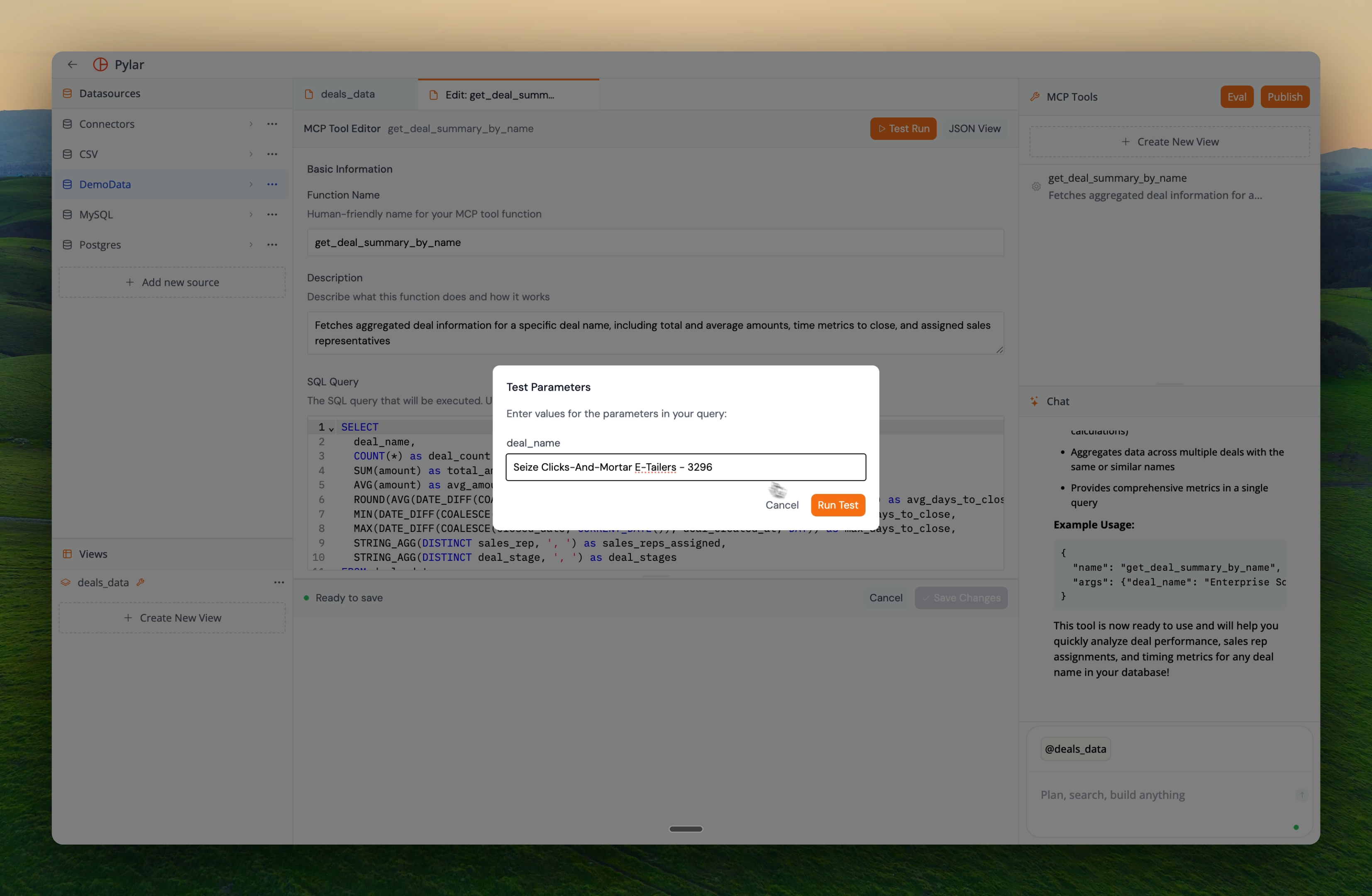 ### Step 2: Test Execution
After clicking "Test Run":
1. A popup window appears showing:
* The query being executed
* Parameter values being used
* Execution status
2. Wait for the query to complete (you'll see a loader)
3. Results appear in the **"Test Results"** section
The test uses the Tool Call Arguments you've configured. These are the sample values that will be injected into your query.
### Step 3: Review Results
The Test Results section shows:
### Step 2: Test Execution
After clicking "Test Run":
1. A popup window appears showing:
* The query being executed
* Parameter values being used
* Execution status
2. Wait for the query to complete (you'll see a loader)
3. Results appear in the **"Test Results"** section
The test uses the Tool Call Arguments you've configured. These are the sample values that will be injected into your query.
### Step 3: Review Results
The Test Results section shows:
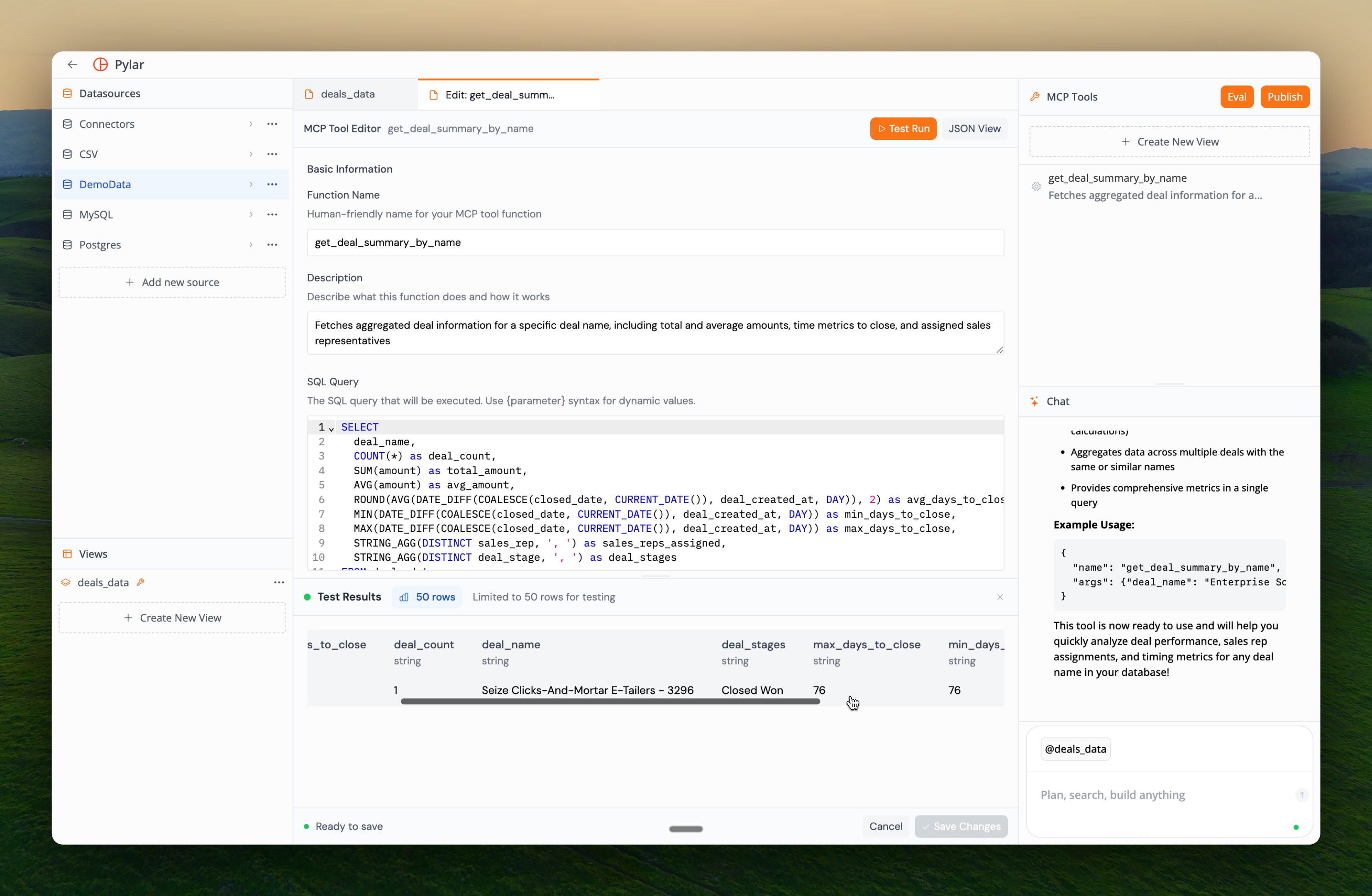 * **Query Executed**: The actual SQL query with parameter values injected
* **Result Data**: The data returned by the query
* **Row Count**: Number of rows returned
* **Execution Time**: How long the query took
* **Status**: Success or error message
### Example Test Results
For our engagement score tool with `event_type = "login"`:
**Query Executed**:
```sql theme={null}
SELECT engagement_score
FROM table0
WHERE event_type LIKE '%login%'
ORDER BY engagement_score DESC
```
**Results**:
* Engagement scores for all events containing "login"
* Ordered from highest to lowest
* Row count and execution time displayed
If the test succeeds, your tool is working correctly and ready for use. If it fails, review the error message and fix the issue.
## Understanding Test Results
### Successful Test
A successful test shows:
* ✅ Query executed without errors
* ✅ Results returned (even if empty)
* ✅ Correct parameter injection
* ✅ Expected data structure
### Failed Test
If a test fails, you'll see:
* ❌ Error message explaining what went wrong
* ❌ Query that failed (helpful for debugging)
* ❌ Parameter values used
### Common Test Failures
**1. Parameter Mismatch**
* **Error**: Parameter placeholder doesn't match parameter name
* **Fix**: Ensure `{parameter_name}` in SQL matches parameter definition exactly
**2. SQL Syntax Error**
* **Error**: Invalid SQL syntax
* **Fix**: Test query manually in SQL IDE first
**3. Data Type Mismatch**
* **Error**: Parameter type doesn't match query expectations
* **Fix**: Ensure parameter types are correct (string, number, etc.)
**4. Empty Results**
* **Not an error**: Query works but returns no data
* **Check**: Verify your view has data matching the test criteria
## Testing Different Scenarios
### Test with Different Values
Use the Tool Call Arguments to test various scenarios:
**Scenario 1: Exact Match**
```json theme={null}
{
"event_type": "login"
}
```
**Scenario 2: Partial Match**
```json theme={null}
{
"event_type": "log"
}
```
**Scenario 3: Edge Cases**
```json theme={null}
{
"event_type": "" // Empty string
}
```
### Testing Multiple Parameters
If your tool has multiple parameters:
```json theme={null}
{
"event_type": "purchase",
"start_date": "2024-01-01",
"end_date": "2024-12-31"
}
```
Test various combinations to ensure all parameters work correctly.
## Best Practices
### Test Before Publishing
* ✅ Always test tools before publishing
* ✅ Test with realistic data values
* ✅ Test edge cases (empty strings, nulls, etc.)
* ✅ Verify results match expectations
### Test Incrementally
When creating or editing tools:
1. **Test Basic Query**: Verify SQL works in SQL IDE
2. **Test with Parameters**: Ensure parameter injection works
3. **Test Edge Cases**: Try unusual inputs
4. **Test Performance**: Check query execution time
### Use Realistic Test Data
* ✅ Use values that represent real agent usage
* ✅ Test with data that exists in your view
* ✅ Try different parameter combinations
* ✅ Test with empty/null values if appropriate
## Troubleshooting Test Failures
### Issue: "Parameter not found"
**Cause**: Parameter placeholder in SQL doesn't match parameter name
**Solution**:
```sql theme={null}
-- Wrong
WHERE event_type = '{event_type_param}'
-- Correct (matches parameter name)
WHERE event_type = '{event_type}'
```
### Issue: "Query syntax error"
**Cause**: Invalid SQL syntax
**Solution**:
1. Test the query manually in SQL IDE
2. Replace placeholders with actual values
3. Fix any syntax errors
4. Update tool query
### Issue: "No results returned"
**Cause**: Query executes but no data matches criteria
**Solution**:
1. Verify your view has data
2. Check if test values match data in view
3. Try broader test criteria
4. Review WHERE conditions
### Issue: "Query timeout"
**Cause**: Query takes too long to execute
**Solution**:
1. Add LIMIT to restrict results
2. Refine WHERE conditions
3. Optimize query performance
4. Consider data volume
## What to Verify
After a successful test, verify:
* ✅ **Correct Data**: Results match what you expect
* ✅ **Proper Filtering**: WHERE conditions work correctly
* ✅ **Sorting**: ORDER BY works as intended
* ✅ **Parameter Injection**: Values are inserted correctly
* ✅ **Performance**: Query executes in reasonable time
* ✅ **Data Structure**: Columns and types are correct
## Next Steps
Once your tool passes testing:
* [Publishing Tools](/learn/publishing-tools/overview) - Make your tested tools available to agents
* [Editing MCP Tools](/learn/building-mcp-tools/editing-mcp-tools) - Refine tools based on test results
Make your tested tool available to AI agents
* **Query Executed**: The actual SQL query with parameter values injected
* **Result Data**: The data returned by the query
* **Row Count**: Number of rows returned
* **Execution Time**: How long the query took
* **Status**: Success or error message
### Example Test Results
For our engagement score tool with `event_type = "login"`:
**Query Executed**:
```sql theme={null}
SELECT engagement_score
FROM table0
WHERE event_type LIKE '%login%'
ORDER BY engagement_score DESC
```
**Results**:
* Engagement scores for all events containing "login"
* Ordered from highest to lowest
* Row count and execution time displayed
If the test succeeds, your tool is working correctly and ready for use. If it fails, review the error message and fix the issue.
## Understanding Test Results
### Successful Test
A successful test shows:
* ✅ Query executed without errors
* ✅ Results returned (even if empty)
* ✅ Correct parameter injection
* ✅ Expected data structure
### Failed Test
If a test fails, you'll see:
* ❌ Error message explaining what went wrong
* ❌ Query that failed (helpful for debugging)
* ❌ Parameter values used
### Common Test Failures
**1. Parameter Mismatch**
* **Error**: Parameter placeholder doesn't match parameter name
* **Fix**: Ensure `{parameter_name}` in SQL matches parameter definition exactly
**2. SQL Syntax Error**
* **Error**: Invalid SQL syntax
* **Fix**: Test query manually in SQL IDE first
**3. Data Type Mismatch**
* **Error**: Parameter type doesn't match query expectations
* **Fix**: Ensure parameter types are correct (string, number, etc.)
**4. Empty Results**
* **Not an error**: Query works but returns no data
* **Check**: Verify your view has data matching the test criteria
## Testing Different Scenarios
### Test with Different Values
Use the Tool Call Arguments to test various scenarios:
**Scenario 1: Exact Match**
```json theme={null}
{
"event_type": "login"
}
```
**Scenario 2: Partial Match**
```json theme={null}
{
"event_type": "log"
}
```
**Scenario 3: Edge Cases**
```json theme={null}
{
"event_type": "" // Empty string
}
```
### Testing Multiple Parameters
If your tool has multiple parameters:
```json theme={null}
{
"event_type": "purchase",
"start_date": "2024-01-01",
"end_date": "2024-12-31"
}
```
Test various combinations to ensure all parameters work correctly.
## Best Practices
### Test Before Publishing
* ✅ Always test tools before publishing
* ✅ Test with realistic data values
* ✅ Test edge cases (empty strings, nulls, etc.)
* ✅ Verify results match expectations
### Test Incrementally
When creating or editing tools:
1. **Test Basic Query**: Verify SQL works in SQL IDE
2. **Test with Parameters**: Ensure parameter injection works
3. **Test Edge Cases**: Try unusual inputs
4. **Test Performance**: Check query execution time
### Use Realistic Test Data
* ✅ Use values that represent real agent usage
* ✅ Test with data that exists in your view
* ✅ Try different parameter combinations
* ✅ Test with empty/null values if appropriate
## Troubleshooting Test Failures
### Issue: "Parameter not found"
**Cause**: Parameter placeholder in SQL doesn't match parameter name
**Solution**:
```sql theme={null}
-- Wrong
WHERE event_type = '{event_type_param}'
-- Correct (matches parameter name)
WHERE event_type = '{event_type}'
```
### Issue: "Query syntax error"
**Cause**: Invalid SQL syntax
**Solution**:
1. Test the query manually in SQL IDE
2. Replace placeholders with actual values
3. Fix any syntax errors
4. Update tool query
### Issue: "No results returned"
**Cause**: Query executes but no data matches criteria
**Solution**:
1. Verify your view has data
2. Check if test values match data in view
3. Try broader test criteria
4. Review WHERE conditions
### Issue: "Query timeout"
**Cause**: Query takes too long to execute
**Solution**:
1. Add LIMIT to restrict results
2. Refine WHERE conditions
3. Optimize query performance
4. Consider data volume
## What to Verify
After a successful test, verify:
* ✅ **Correct Data**: Results match what you expect
* ✅ **Proper Filtering**: WHERE conditions work correctly
* ✅ **Sorting**: ORDER BY works as intended
* ✅ **Parameter Injection**: Values are inserted correctly
* ✅ **Performance**: Query executes in reasonable time
* ✅ **Data Structure**: Columns and types are correct
## Next Steps
Once your tool passes testing:
* [Publishing Tools](/learn/publishing-tools/overview) - Make your tested tools available to agents
* [Editing MCP Tools](/learn/building-mcp-tools/editing-mcp-tools) - Refine tools based on test results
Make your tested tool available to AI agents