> ## Documentation Index
> Fetch the complete documentation index at: https://docs.pylar.ai/llms.txt
> Use this file to discover all available pages before exploring further.
# Understanding Tool Structure
> Learn about the components of an MCP tool: function name, description, SQL query, parameters, and more
## Overview
Every MCP tool in Pylar has a structured configuration that defines how it works. Understanding these components helps you create better tools and troubleshoot issues.
## Accessing Tool Details
To view a tool's structure:
1. Navigate to your project
2. Find the tool in the **"MCP Tools"** section of the right sidebar
3. **Click on the tool** to open its details
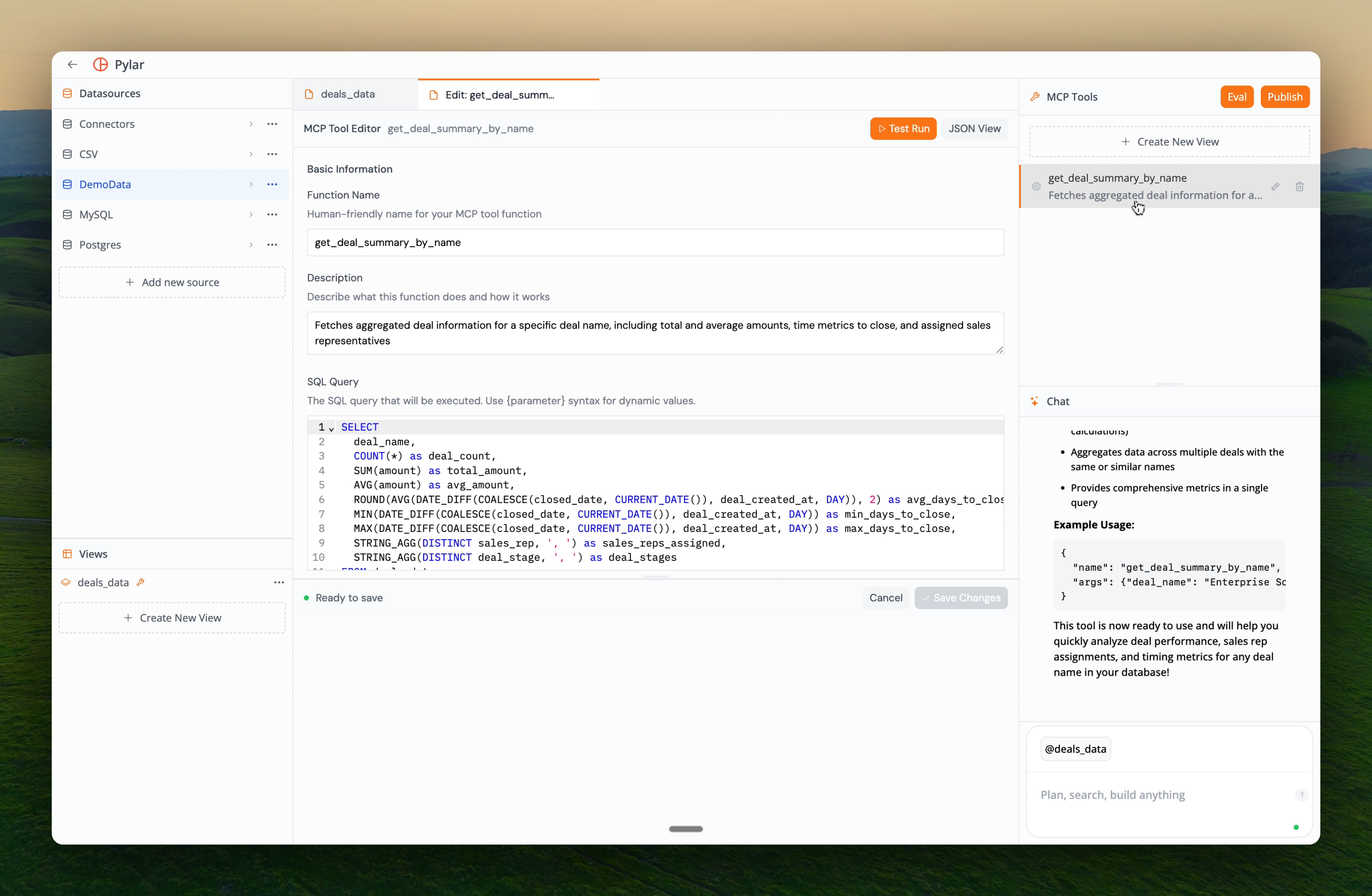
You'll see all the tool's components organized in a clear interface.
 ## Tool Components
### 1. Function Name
The function name is how agents identify and call your tool.
**Location**: At the top of the tool view
**Characteristics**:
* Must be unique within your project
* Should be descriptive and clear
* Follows naming conventions (snake\_case is common)
* Can be renamed at any time
**Example**: `fetch_engagement_scores_by_event_type`
Choose function names that clearly indicate what the tool does. Agents will use this name to invoke the tool.
### 2. Description
The description tells AI agents what your tool does and when to use it.
**Location**: Below the function name
**Characteristics**:
* Written in natural language
* Should be clear and concise
* Helps agents decide when to use the tool
* Visible to agents when they browse available tools
**Example**: *"Fetches engagement scores and related data filtered by event type"*
The description is crucial for agents. Make it specific enough that agents understand exactly what the tool does and when to use it.
### 3. SQL Query
The SQL query defines how the tool retrieves data from your view.
**Location**: In the SQL Query section
**Characteristics**:
* Standard SQL syntax
* Can include parameter placeholders like `{parameter_name}`
* Executes against your data view
* Can be edited and refined
**Example**:
```sql theme={null}
SELECT engagement_score
FROM table0
WHERE event_type LIKE '%{event_type}%'
ORDER BY engagement_score DESC
```
### Parameter Placeholders
Use `{parameter_name}` in your SQL query where you want agent-provided values injected:
```sql theme={null}
-- Single parameter
WHERE event_type = '{event_type}'
-- Multiple parameters
WHERE date >= '{start_date}' AND date <= '{end_date}'
-- In LIKE patterns
WHERE name LIKE '%{search_term}%'
```
Parameter names in SQL must match parameter names exactly. Case-sensitive and spelling must be identical.
### 4. Parameters
Parameters define what inputs your tool accepts from agents.
**Location**: In the Parameters section
**Structure**:
* **Type**: The data type (string, number, boolean, etc.)
* **Required/Optional**: Whether the parameter must be provided
* **Description**: What the parameter represents
* **Properties**: Additional constraints or validations
**Example Parameter Configuration**:
```json theme={null}
{
"event_type": {
"type": "string",
"description": "Event type to filter by (supports partial matching)",
"required": true
}
}
```
### Parameter Types
Common parameter types:
* **string**: Text values
* **number**: Numeric values (integers or decimals)
* **boolean**: True/false values
* **array**: Lists of values
* **object**: Complex nested structures
### 5. Tool Call Arguments
Tool call arguments are test values used to verify your tool works.
**Location**: In the Tool Call Arguments section (right side)
**Purpose**:
* Sample inputs for testing
* Can be modified during testing
* Help validate tool behavior
* Don't affect production tool calls
**Example**:
```json theme={null}
{
"event_type": "login"
}
```
Use realistic test values that represent how agents will actually use your tool. This helps catch issues early.
## JSON Structure
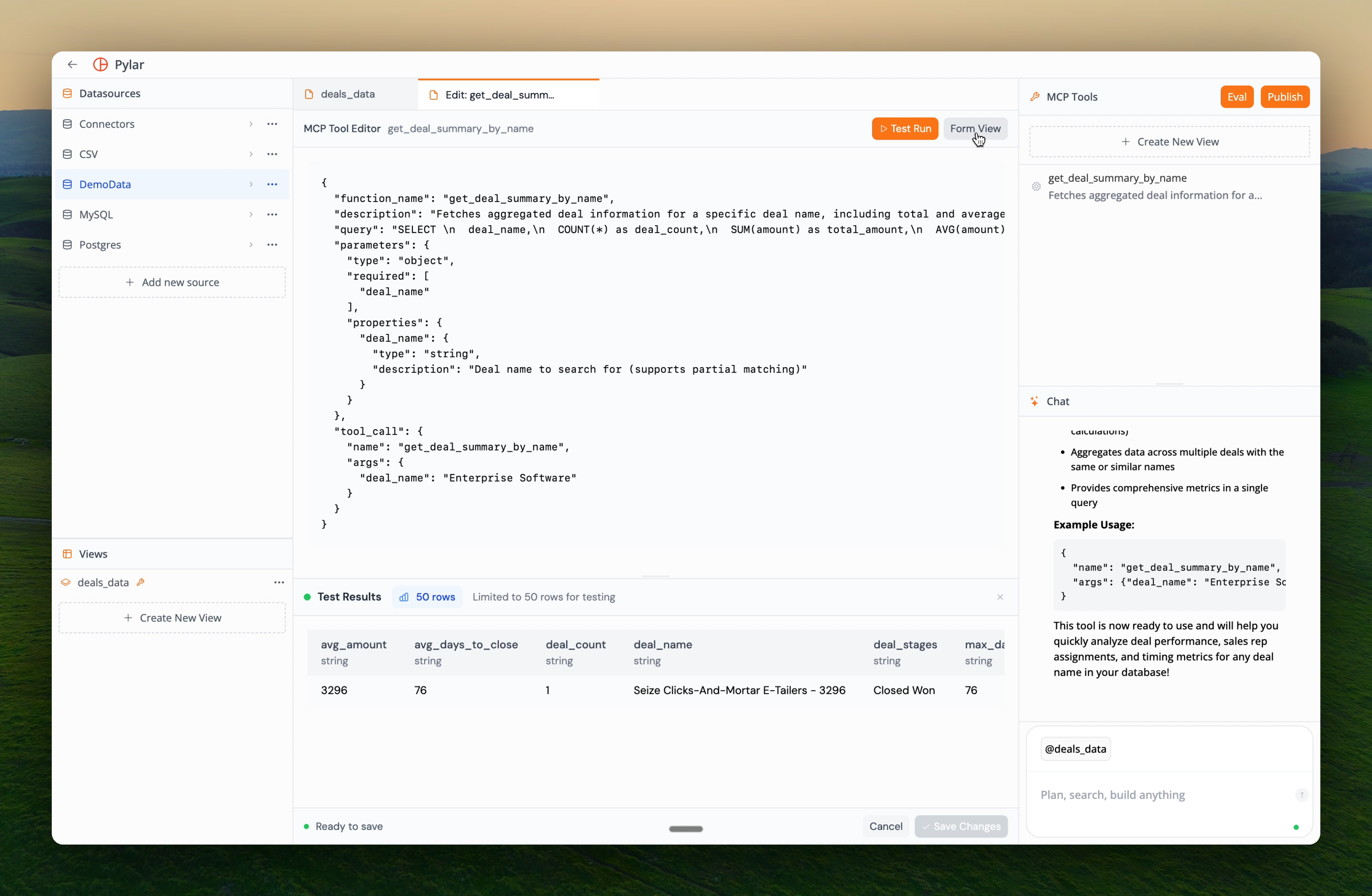
You can view the complete tool structure as JSON by clicking **"JSON view"**.
## Tool Components
### 1. Function Name
The function name is how agents identify and call your tool.
**Location**: At the top of the tool view
**Characteristics**:
* Must be unique within your project
* Should be descriptive and clear
* Follows naming conventions (snake\_case is common)
* Can be renamed at any time
**Example**: `fetch_engagement_scores_by_event_type`
Choose function names that clearly indicate what the tool does. Agents will use this name to invoke the tool.
### 2. Description
The description tells AI agents what your tool does and when to use it.
**Location**: Below the function name
**Characteristics**:
* Written in natural language
* Should be clear and concise
* Helps agents decide when to use the tool
* Visible to agents when they browse available tools
**Example**: *"Fetches engagement scores and related data filtered by event type"*
The description is crucial for agents. Make it specific enough that agents understand exactly what the tool does and when to use it.
### 3. SQL Query
The SQL query defines how the tool retrieves data from your view.
**Location**: In the SQL Query section
**Characteristics**:
* Standard SQL syntax
* Can include parameter placeholders like `{parameter_name}`
* Executes against your data view
* Can be edited and refined
**Example**:
```sql theme={null}
SELECT engagement_score
FROM table0
WHERE event_type LIKE '%{event_type}%'
ORDER BY engagement_score DESC
```
### Parameter Placeholders
Use `{parameter_name}` in your SQL query where you want agent-provided values injected:
```sql theme={null}
-- Single parameter
WHERE event_type = '{event_type}'
-- Multiple parameters
WHERE date >= '{start_date}' AND date <= '{end_date}'
-- In LIKE patterns
WHERE name LIKE '%{search_term}%'
```
Parameter names in SQL must match parameter names exactly. Case-sensitive and spelling must be identical.
### 4. Parameters
Parameters define what inputs your tool accepts from agents.
**Location**: In the Parameters section
**Structure**:
* **Type**: The data type (string, number, boolean, etc.)
* **Required/Optional**: Whether the parameter must be provided
* **Description**: What the parameter represents
* **Properties**: Additional constraints or validations
**Example Parameter Configuration**:
```json theme={null}
{
"event_type": {
"type": "string",
"description": "Event type to filter by (supports partial matching)",
"required": true
}
}
```
### Parameter Types
Common parameter types:
* **string**: Text values
* **number**: Numeric values (integers or decimals)
* **boolean**: True/false values
* **array**: Lists of values
* **object**: Complex nested structures
### 5. Tool Call Arguments
Tool call arguments are test values used to verify your tool works.
**Location**: In the Tool Call Arguments section (right side)
**Purpose**:
* Sample inputs for testing
* Can be modified during testing
* Help validate tool behavior
* Don't affect production tool calls
**Example**:
```json theme={null}
{
"event_type": "login"
}
```
Use realistic test values that represent how agents will actually use your tool. This helps catch issues early.
## JSON Structure
You can view the complete tool structure as JSON by clicking **"JSON view"**.
 ### Complete JSON Example
```json theme={null}
{
"function_name": "fetch_engagement_scores_by_event_type",
"description": "Fetches engagement scores and related data filtered by event type",
"query": "SELECT engagement_score FROM table0 WHERE event_type LIKE '%{event_type}%' \nORDER BY engagement_score DESC",
"parameters": {
"type": "object",
"required": [
"event_type"
],
"properties": {
"event_type": {
"type": "string",
"description": "Event type to filter by (supports partial matching)"
}
}
},
"tool_call": {
"name": "fetch_engagement_scores_by_event_type",
"args": {
"event_type": "login"
}
}
}
```
### JSON Structure Breakdown
* **function\_name**: Tool identifier
* **description**: What the tool does
* **query**: SQL query with parameter placeholders
* **parameters**: Parameter definitions (type, required, properties)
* **tool\_call**: Test arguments for validation
The JSON view is useful for understanding the complete tool structure and for debugging. It shows exactly how the tool is configured.
## How Components Work Together
### The Flow
1. **Agent Calls Tool**: Uses the function name
2. **Agent Provides Parameters**: Sends values for required/optional parameters
3. **Query Execution**: Parameters replace placeholders in SQL
4. **Results Returned**: Query results sent back to agent
### Example Flow
**Agent Request**:
```json theme={null}
{
"function": "fetch_engagement_scores_by_event_type",
"args": {
"event_type": "purchase"
}
}
```
**Query Transformation**:
```sql theme={null}
-- Original query with placeholder
SELECT engagement_score
FROM table0
WHERE event_type LIKE '%{event_type}%'
-- After parameter injection
SELECT engagement_score
FROM table0
WHERE event_type LIKE '%purchase%'
```
**Result**: Returns all engagement scores for events containing "purchase"
## Best Practices
### Function Names
* ✅ Use descriptive names: `get_customer_revenue_by_date_range`
* ✅ Follow naming conventions: snake\_case
* ✅ Be specific: `fetch_engagement_scores_by_event_type` not `get_data`
* ❌ Avoid abbreviations unless widely understood
### Descriptions
* ✅ Be clear and specific
* ✅ Mention what data is returned
* ✅ Note any important behaviors (like partial matching)
* ❌ Avoid vague descriptions like "gets data"
### SQL Queries
* ✅ Use parameter placeholders for dynamic values
* ✅ Test queries manually before creating tools
* ✅ Include ORDER BY for predictable results
* ✅ Consider performance (use LIMIT when appropriate)
### Parameters
* ✅ Make parameters required when they're essential
* ✅ Provide clear descriptions
* ✅ Use appropriate types (string, number, etc.)
* ✅ Consider adding validation constraints
## Common Patterns
### Pattern 1: Single Filter
```sql theme={null}
SELECT *
FROM view_name
WHERE column = '{filter_value}'
```
### Pattern 2: Date Range
```sql theme={null}
SELECT *
FROM view_name
WHERE date >= '{start_date}'
AND date <= '{end_date}'
ORDER BY date DESC
```
### Pattern 3: Search with LIKE
```sql theme={null}
SELECT *
FROM view_name
WHERE name LIKE '%{search_term}%'
ORDER BY relevance DESC
LIMIT 100
```
### Pattern 4: Multiple Filters
```sql theme={null}
SELECT *
FROM view_name
WHERE category = '{category}'
AND status = '{status}'
AND date >= '{start_date}'
ORDER BY date DESC
```
## Next Steps
Now that you understand tool structure:
* [Editing MCP Tools](/learn/building-mcp-tools/editing-mcp-tools) - Learn how to modify tools
* [Testing Your Tools](/learn/building-mcp-tools/testing-your-tools) - Verify tools work correctly
* [Publishing Tools](/learn/publishing-tools/overview) - Make tools available to agents
Learn how to refine and customize your tools
### Complete JSON Example
```json theme={null}
{
"function_name": "fetch_engagement_scores_by_event_type",
"description": "Fetches engagement scores and related data filtered by event type",
"query": "SELECT engagement_score FROM table0 WHERE event_type LIKE '%{event_type}%' \nORDER BY engagement_score DESC",
"parameters": {
"type": "object",
"required": [
"event_type"
],
"properties": {
"event_type": {
"type": "string",
"description": "Event type to filter by (supports partial matching)"
}
}
},
"tool_call": {
"name": "fetch_engagement_scores_by_event_type",
"args": {
"event_type": "login"
}
}
}
```
### JSON Structure Breakdown
* **function\_name**: Tool identifier
* **description**: What the tool does
* **query**: SQL query with parameter placeholders
* **parameters**: Parameter definitions (type, required, properties)
* **tool\_call**: Test arguments for validation
The JSON view is useful for understanding the complete tool structure and for debugging. It shows exactly how the tool is configured.
## How Components Work Together
### The Flow
1. **Agent Calls Tool**: Uses the function name
2. **Agent Provides Parameters**: Sends values for required/optional parameters
3. **Query Execution**: Parameters replace placeholders in SQL
4. **Results Returned**: Query results sent back to agent
### Example Flow
**Agent Request**:
```json theme={null}
{
"function": "fetch_engagement_scores_by_event_type",
"args": {
"event_type": "purchase"
}
}
```
**Query Transformation**:
```sql theme={null}
-- Original query with placeholder
SELECT engagement_score
FROM table0
WHERE event_type LIKE '%{event_type}%'
-- After parameter injection
SELECT engagement_score
FROM table0
WHERE event_type LIKE '%purchase%'
```
**Result**: Returns all engagement scores for events containing "purchase"
## Best Practices
### Function Names
* ✅ Use descriptive names: `get_customer_revenue_by_date_range`
* ✅ Follow naming conventions: snake\_case
* ✅ Be specific: `fetch_engagement_scores_by_event_type` not `get_data`
* ❌ Avoid abbreviations unless widely understood
### Descriptions
* ✅ Be clear and specific
* ✅ Mention what data is returned
* ✅ Note any important behaviors (like partial matching)
* ❌ Avoid vague descriptions like "gets data"
### SQL Queries
* ✅ Use parameter placeholders for dynamic values
* ✅ Test queries manually before creating tools
* ✅ Include ORDER BY for predictable results
* ✅ Consider performance (use LIMIT when appropriate)
### Parameters
* ✅ Make parameters required when they're essential
* ✅ Provide clear descriptions
* ✅ Use appropriate types (string, number, etc.)
* ✅ Consider adding validation constraints
## Common Patterns
### Pattern 1: Single Filter
```sql theme={null}
SELECT *
FROM view_name
WHERE column = '{filter_value}'
```
### Pattern 2: Date Range
```sql theme={null}
SELECT *
FROM view_name
WHERE date >= '{start_date}'
AND date <= '{end_date}'
ORDER BY date DESC
```
### Pattern 3: Search with LIKE
```sql theme={null}
SELECT *
FROM view_name
WHERE name LIKE '%{search_term}%'
ORDER BY relevance DESC
LIMIT 100
```
### Pattern 4: Multiple Filters
```sql theme={null}
SELECT *
FROM view_name
WHERE category = '{category}'
AND status = '{status}'
AND date >= '{start_date}'
ORDER BY date DESC
```
## Next Steps
Now that you understand tool structure:
* [Editing MCP Tools](/learn/building-mcp-tools/editing-mcp-tools) - Learn how to modify tools
* [Testing Your Tools](/learn/building-mcp-tools/testing-your-tools) - Verify tools work correctly
* [Publishing Tools](/learn/publishing-tools/overview) - Make tools available to agents
Learn how to refine and customize your tools