> ## Documentation Index
> Fetch the complete documentation index at: https://docs.pylar.ai/llms.txt
> Use this file to discover all available pages before exploring further.
# Connecting BigQuery
> Step-by-step guide to connecting your Google Cloud BigQuery data warehouse to Pylar
## Overview
Connecting Pylar to BigQuery allows you to access and analyze your data stored in BigQuery directly from Pylar. Your data remains in BigQuery—Pylar indexes it for easier querying and executes queries on your BigQuery infrastructure.
## Prerequisites
* ✅ Pylar account with Analyst role or higher
* ✅ Google Cloud Project with BigQuery enabled
* ✅ Service account with BigQuery access permissions
* ✅ Service account JSON key file
## Step 1: Access Connections
1. Navigate to the **"Connections"** tab on the left side of your Pylar interface
2. You'll see different sections for connection types
## Step 2: Find BigQuery
1. In the **"Databases"** section, find and click on the **BigQuery** icon
2. The connection setup screen will open
## Step 3: Configure Connection
Fill in the connection details:
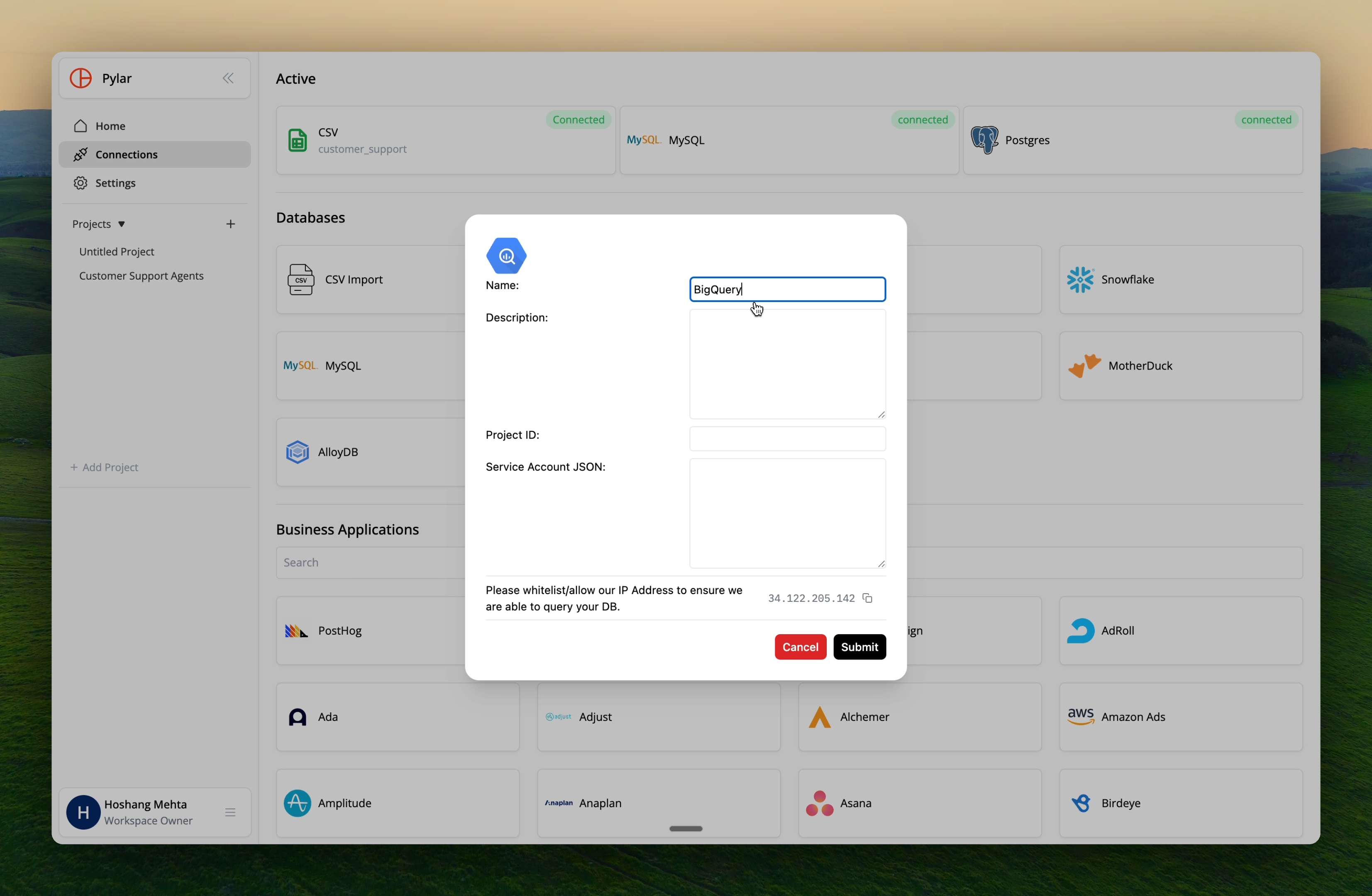 ### Name
Enter a unique name for this connection to help identify it later.
**Naming Rules**:
* Lowercase letters only
* Numbers and underscores allowed
* No spaces or special characters
**Example**: `bigquery_production` or `analytics_warehouse`
### Description (Optional)
Provide a description of what this connection will be used for.
**Example**: "Production BigQuery warehouse for customer analytics"
### Project ID
Enter the **Google Cloud Project ID** where your BigQuery dataset is hosted.
**How to find it**:
* In Google Cloud Console, go to your project
* The Project ID is displayed at the top of the dashboard
* Format: `my-project-id-12345`
### Service Account JSON
Provide the **JSON key file** associated with your service account.
**How to create**:
1. In Google Cloud Console, go to **IAM & Admin** → **Service Accounts**
2. Create a new service account or select an existing one
3. Grant necessary BigQuery permissions:
* `BigQuery Data Viewer` (to read data)
* `BigQuery Job User` (to run queries)
4. Create a JSON key:
* Click on the service account
* Go to **Keys** tab
* Click **Add Key** → **Create new key**
* Select **JSON** format
* Download the JSON file
5. Copy the contents of the JSON file and paste it into the Pylar field
Keep your service account JSON key secure. It provides access to your BigQuery data. Never share it publicly or commit it to version control.
## Step 4: Whitelist Pylar IP Address
To ensure seamless connectivity, whitelist Pylar's IP address in your Google Cloud settings:
**Pylar IP Address**: `34.122.205.142`
**How to whitelist**:
1. In Google Cloud Console, go to **VPC Network** → **Firewall Rules**
2. Create a new firewall rule or modify existing rules
3. Add `34.122.205.142` to the allowed IP addresses
4. Or configure your BigQuery dataset access settings to allow this IP
Whitelisting the IP address helps avoid permissions-related issues and ensures stable connectivity.
## Step 5: Submit Connection
1. Review all the information you've entered
2. Click **"Submit"** to establish the connection
## Step 6: Connection Validation
Once submitted, Pylar will:
1. Validate the connection details
2. Test the connection to BigQuery
3. Begin indexing your BigQuery data
If everything is correct, your BigQuery database will be connected.
## Step 7: Wait for Indexing
After the connection is established:
* **Data indexing begins**: Pylar indexes your BigQuery data for easier querying
* **Processing time**: May take a while depending on data volume
* **Notification**: You'll receive an email and in-app notification when indexing is complete
Your data remains in BigQuery. Pylar only indexes metadata for autocompletion and query optimization—no data is copied.
## Using Your BigQuery Connection
Once connected and indexed:
### Query BigQuery Data
1. Go to the SQL IDE in Pylar
2. Reference your BigQuery connection by name:
```sql theme={null}
SELECT * FROM bigquery_production.dataset.table_name;
```
3. Run queries that execute on your BigQuery infrastructure
### Join with Other Sources
You can join BigQuery data with other connected sources:
```sql theme={null}
SELECT
bq.customer_id,
bq.revenue,
hs.email,
sf.opportunity_value
FROM bigquery_production.customers bq
JOIN hubspot.contacts hs ON bq.email = hs.email
JOIN snowflake.opportunities sf ON bq.customer_id = sf.account_id;
```
## Troubleshooting
### Issue: Connection test fails
**Solutions**:
* Verify Project ID is correct
* Check service account JSON is valid
* Ensure service account has proper permissions
* Verify IP address is whitelisted
### Issue: "Permission denied" errors
**Solutions**:
* Ensure service account has `BigQuery Data Viewer` and `BigQuery Job User` roles
* Check dataset-level permissions
* Verify IP address `34.122.205.142` is whitelisted
* Review Google Cloud IAM settings
### Issue: Data not appearing
**Solutions**:
* Wait for indexing to complete (check email notification)
* Verify dataset and table names are correct
* Check service account has access to the datasets
* Review BigQuery query logs for errors
### Issue: Slow queries
**Solutions**:
* This is normal for large datasets—queries run on your BigQuery infrastructure
* Optimize your queries (add filters, use LIMIT)
* Check BigQuery query performance in Google Cloud Console
## Best Practices
### Service Account Security
* ✅ Create a dedicated service account for Pylar
* ✅ Grant only necessary permissions (read-only if possible)
* ✅ Regularly rotate service account keys
* ✅ Monitor service account usage in Google Cloud
### Connection Naming
* ✅ Use descriptive names: `bigquery_prod`, `bigquery_staging`
* ✅ Include environment: `bigquery_production`, `bigquery_development`
* ✅ Be consistent with naming conventions
### Data Access
* ✅ Grant access only to necessary datasets
* ✅ Use dataset-level permissions when possible
* ✅ Monitor query usage through BigQuery logs
## Next Steps
Now that BigQuery is connected:
* [Creating Data Views](/learn/creating-data-views/overview) - Create views using your BigQuery data
* [Cross-Database Joins](/learn/creating-data-views/cross-database-joins) - Join BigQuery with other sources
* [Connection Security](/learn/making-connections/connection-security) - Secure your connections
Use your BigQuery connection to create data views
### Name
Enter a unique name for this connection to help identify it later.
**Naming Rules**:
* Lowercase letters only
* Numbers and underscores allowed
* No spaces or special characters
**Example**: `bigquery_production` or `analytics_warehouse`
### Description (Optional)
Provide a description of what this connection will be used for.
**Example**: "Production BigQuery warehouse for customer analytics"
### Project ID
Enter the **Google Cloud Project ID** where your BigQuery dataset is hosted.
**How to find it**:
* In Google Cloud Console, go to your project
* The Project ID is displayed at the top of the dashboard
* Format: `my-project-id-12345`
### Service Account JSON
Provide the **JSON key file** associated with your service account.
**How to create**:
1. In Google Cloud Console, go to **IAM & Admin** → **Service Accounts**
2. Create a new service account or select an existing one
3. Grant necessary BigQuery permissions:
* `BigQuery Data Viewer` (to read data)
* `BigQuery Job User` (to run queries)
4. Create a JSON key:
* Click on the service account
* Go to **Keys** tab
* Click **Add Key** → **Create new key**
* Select **JSON** format
* Download the JSON file
5. Copy the contents of the JSON file and paste it into the Pylar field
Keep your service account JSON key secure. It provides access to your BigQuery data. Never share it publicly or commit it to version control.
## Step 4: Whitelist Pylar IP Address
To ensure seamless connectivity, whitelist Pylar's IP address in your Google Cloud settings:
**Pylar IP Address**: `34.122.205.142`
**How to whitelist**:
1. In Google Cloud Console, go to **VPC Network** → **Firewall Rules**
2. Create a new firewall rule or modify existing rules
3. Add `34.122.205.142` to the allowed IP addresses
4. Or configure your BigQuery dataset access settings to allow this IP
Whitelisting the IP address helps avoid permissions-related issues and ensures stable connectivity.
## Step 5: Submit Connection
1. Review all the information you've entered
2. Click **"Submit"** to establish the connection
## Step 6: Connection Validation
Once submitted, Pylar will:
1. Validate the connection details
2. Test the connection to BigQuery
3. Begin indexing your BigQuery data
If everything is correct, your BigQuery database will be connected.
## Step 7: Wait for Indexing
After the connection is established:
* **Data indexing begins**: Pylar indexes your BigQuery data for easier querying
* **Processing time**: May take a while depending on data volume
* **Notification**: You'll receive an email and in-app notification when indexing is complete
Your data remains in BigQuery. Pylar only indexes metadata for autocompletion and query optimization—no data is copied.
## Using Your BigQuery Connection
Once connected and indexed:
### Query BigQuery Data
1. Go to the SQL IDE in Pylar
2. Reference your BigQuery connection by name:
```sql theme={null}
SELECT * FROM bigquery_production.dataset.table_name;
```
3. Run queries that execute on your BigQuery infrastructure
### Join with Other Sources
You can join BigQuery data with other connected sources:
```sql theme={null}
SELECT
bq.customer_id,
bq.revenue,
hs.email,
sf.opportunity_value
FROM bigquery_production.customers bq
JOIN hubspot.contacts hs ON bq.email = hs.email
JOIN snowflake.opportunities sf ON bq.customer_id = sf.account_id;
```
## Troubleshooting
### Issue: Connection test fails
**Solutions**:
* Verify Project ID is correct
* Check service account JSON is valid
* Ensure service account has proper permissions
* Verify IP address is whitelisted
### Issue: "Permission denied" errors
**Solutions**:
* Ensure service account has `BigQuery Data Viewer` and `BigQuery Job User` roles
* Check dataset-level permissions
* Verify IP address `34.122.205.142` is whitelisted
* Review Google Cloud IAM settings
### Issue: Data not appearing
**Solutions**:
* Wait for indexing to complete (check email notification)
* Verify dataset and table names are correct
* Check service account has access to the datasets
* Review BigQuery query logs for errors
### Issue: Slow queries
**Solutions**:
* This is normal for large datasets—queries run on your BigQuery infrastructure
* Optimize your queries (add filters, use LIMIT)
* Check BigQuery query performance in Google Cloud Console
## Best Practices
### Service Account Security
* ✅ Create a dedicated service account for Pylar
* ✅ Grant only necessary permissions (read-only if possible)
* ✅ Regularly rotate service account keys
* ✅ Monitor service account usage in Google Cloud
### Connection Naming
* ✅ Use descriptive names: `bigquery_prod`, `bigquery_staging`
* ✅ Include environment: `bigquery_production`, `bigquery_development`
* ✅ Be consistent with naming conventions
### Data Access
* ✅ Grant access only to necessary datasets
* ✅ Use dataset-level permissions when possible
* ✅ Monitor query usage through BigQuery logs
## Next Steps
Now that BigQuery is connected:
* [Creating Data Views](/learn/creating-data-views/overview) - Create views using your BigQuery data
* [Cross-Database Joins](/learn/creating-data-views/cross-database-joins) - Join BigQuery with other sources
* [Connection Security](/learn/making-connections/connection-security) - Secure your connections
Use your BigQuery connection to create data views